
Desktop Development: Building Powerful Native Applications
Desktop development is the craft of building software applications that run natively on personal computers and workstations. It is the foundation of the modern computing era, powering everything from creative tools and productivity suites to critical enterprise systems and high-performance games. In an age increasingly dominated by web and mobile, desktop applications remain indispensable for scenarios demanding unparalleled performance, deep hardware integration, robust offline capabilities, and rich user experiences.
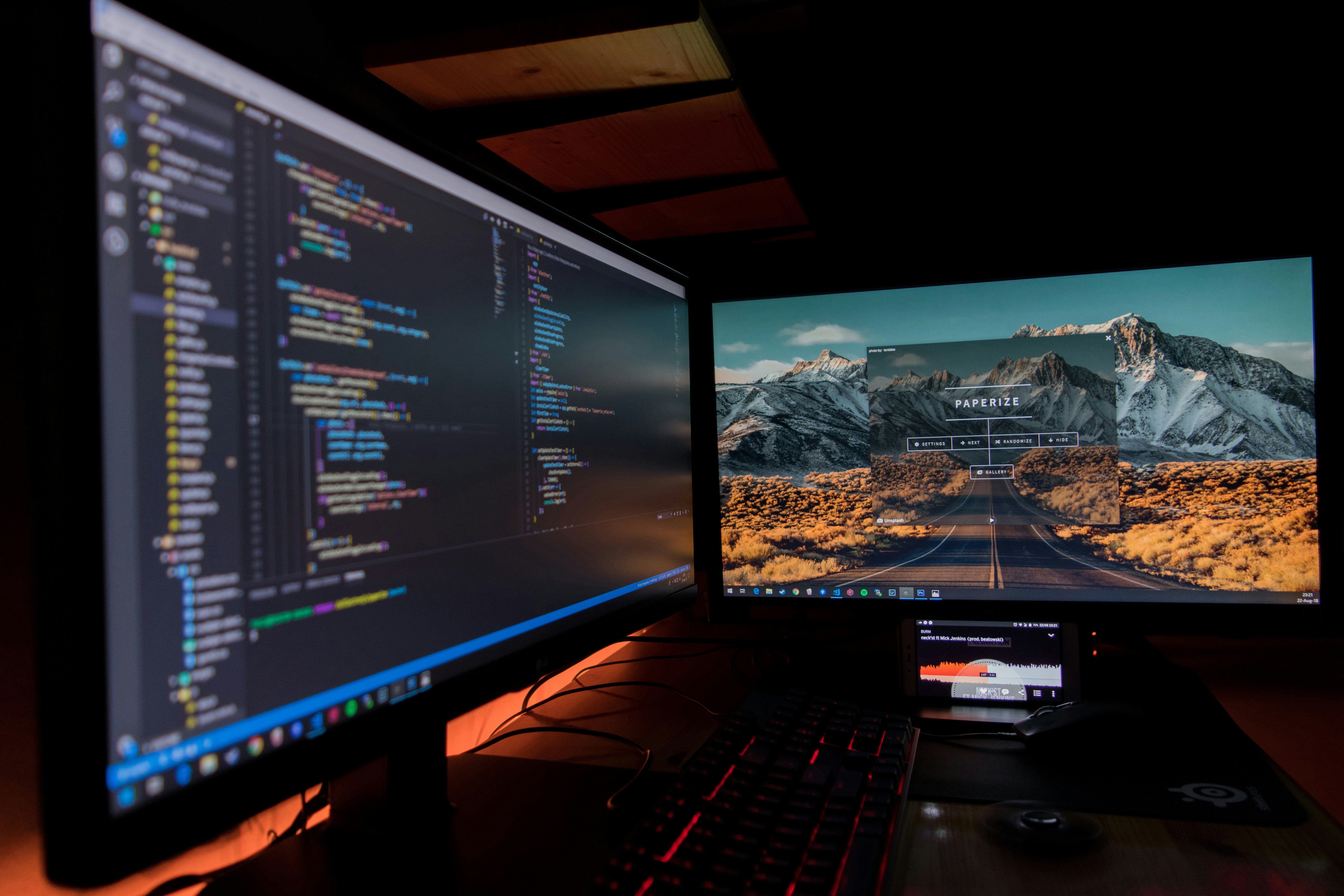
Desktop development differs fundamentally from web or mobile development. It is about creating software that lives on the user's machine, harnessing the full power of the operating system and hardware to deliver responsive, reliable, and feature-rich experiences.
What is Desktop Development?
Desktop development is the process of creating, building, and maintaining applications that are installed and executed locally on a desktop computer or workstation. These applications provide users with direct interaction and precise control over the user interface, often functioning as client-side programs with rich graphical user interfaces (GUIs).
Unlike web applications, which are accessed via a browser and do not require installation on the client device, desktop applications are typically platform-specific and standalone. They are designed to run successfully without an internet connection for operating systems like Windows, macOS, and Linux.
A Brief History
Graphical applications emerged in the early 1980s as we moved from text-based terminals to more powerful systems. The introduction of the Apple Macintosh in 1984 brought the first successful commercial graphical operating system, establishing conventions that quickly became standard across other platforms. These early systems were built on the WIMP (Window, Icon, Menu, Pointing device) paradigm, which remains central to desktop application design today. Modern graphical desktop applications closely resemble their earlier counterparts, still relying heavily on point-and-click interaction with a mouse and keyboard.
Desktop vs. Web vs. Mobile: Core Distinctions
FactorDesktopWebMobileInstallationInstalled locallyAccessed via browserInstalled via app storeInternet RequirementCan function offlineRequires internet connectionVaries (many work offline)PerformanceFull hardware accessLimited by browserLimited by deviceUser InteractionMouse, keyboard, gesturesPrimarily mouse and keyboardTouch, gesturesDevelopmentPlatform-specific or cross-platform frameworksHTML, CSS, JavaScriptPlatform-specific or cross-platformDistributionDirect download, app storesNo installation neededApp stores
The choice between desktop, web, and mobile development depends on your specific use case, audience, and performance requirements.
The Core Principles of Desktop Development
Performance and Responsiveness
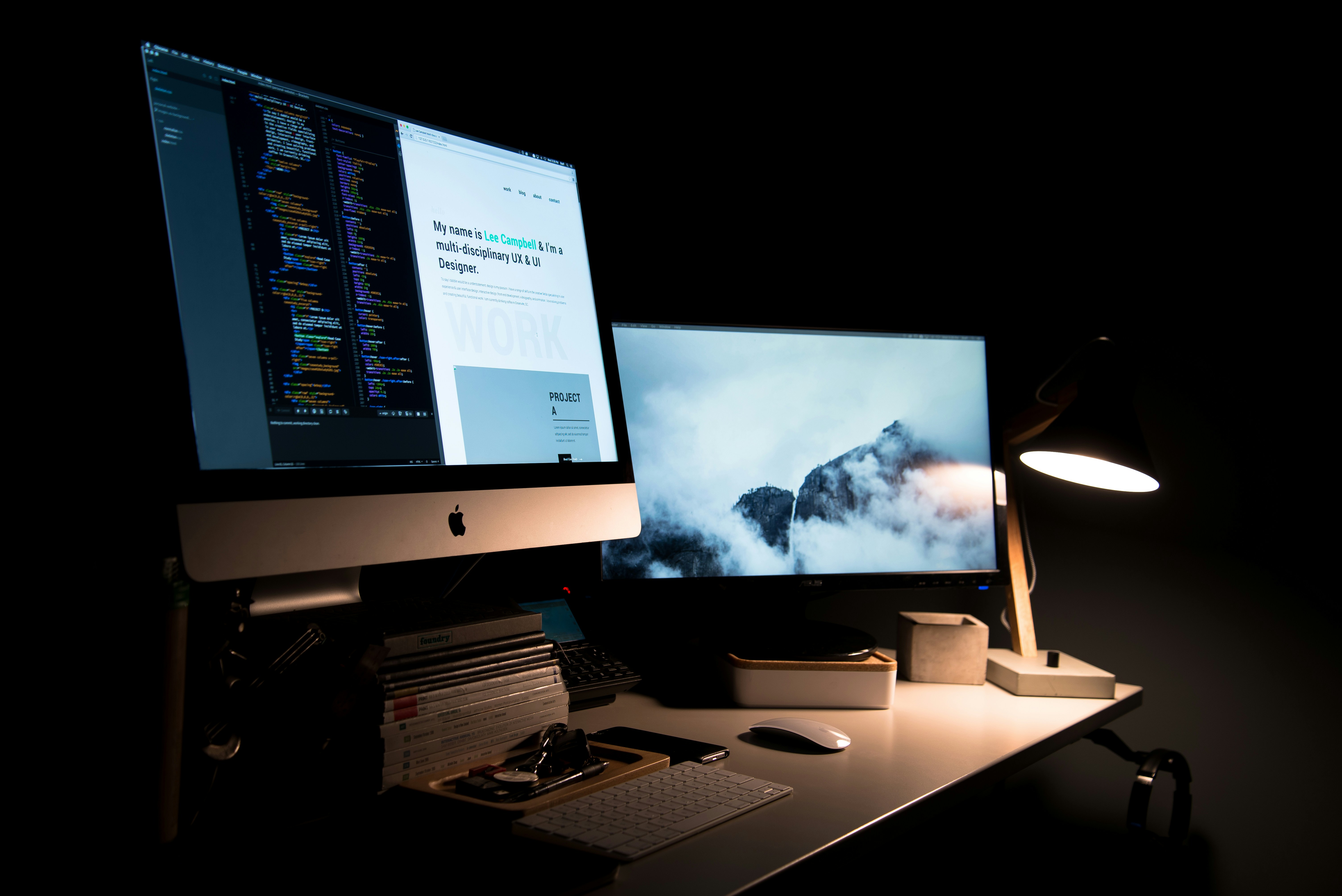
Desktop applications run locally, enabling them to leverage the full power of the user's hardware. This makes them ideal for resource-intensive tasks like video editing, 3D rendering, scientific computing, and data analysis. For developers requiring the highest level of performance, using the Win32 API with C++ provides fine-grained control over system resources, including hardware-level optimization and access to performance-oriented instruction sets like SSE and AVX.
Native Look and Feel
Users expect desktop applications to look and behave like the operating system they're running on. This is known as "native" UI. Windows applications should follow Fluent Design principles, macOS applications should follow Apple's Human Interface Guidelines, and Linux applications should follow GTK or Qt conventions. Frameworks like WinUI 3 and WPF are designed to deliver that native Windows experience.
Offline-First
A key advantage of desktop applications is their ability to function without an internet connection. This reliability is critical for professionals who need to work in environments with poor connectivity, or for applications that must remain operational regardless of network status. They leverage the system's resources for storage and processing, providing a richer and more responsive user experience than typically found in web applications.
Direct Hardware Access
Desktop applications can directly access hardware peripherals—cameras, microphones, printers, scanners, game controllers, and more. This makes them essential for specialized domains like medical imaging, industrial automation, and audio production.
Security and Control
Desktop applications benefit from the security features of the host operating system. Security measures like firewalls, antivirus software, and built-in security tools protect desktop applications from malware and unauthorized access. However, once installed, controlling access to desktop applications can be challenging; solutions like Application Virtualization (App-V) and endpoint management tools help address these challenges.
The Architecture of Desktop Applications
The architecture of a desktop application is like the structural design of a building—it provides a comprehensive structure detailing the components involved, their interactions, and how the application is deployed.
Common Architectural Patterns
Monolithic and Layered Architectures:
A common approach is the monolithic architecture, often layered by functions such as the presentation layer, business logic layer, and data layer. At the physical deployment level, the monolithic architecture is a "single block," typically compiled, packaged, deployed, and maintained as a single application.
Model-View-Controller (MVC):
MVC divides application processes into three separate components: the model (data), the view (UI), and the controller (logic). This separation helps manage complexity by allowing each component to be managed independently. MVC-based applications are highly maintainable, extensible, and scalable, enhancing reusability and testability.
Event-Driven Architecture:
Most modern GUI software is developed using event-handler architecture. When a user interacts with a widget—clicking a button or selecting an item from a list—an event is generated and handled by procedures known as event handlers. These handlers obtain information about the widget, retrieve application state, and take appropriate action.
Single vs. Multi-Threaded Applications
Single-threaded applications execute tasks sequentially, while multi-threaded applications can perform multiple tasks simultaneously, improving performance through better resource allocation. Multi-threading is often used to keep the UI responsive while performing time-consuming operations in the background.
Data Management and Storage
Desktop applications manage and store data using various systems, including relational databases, ISAM (Indexed Sequential Access Method) systems, direct-files, and sequential/binary files. These systems are selected based on requirements for data protection, logging, and transaction support. Local databases or file storage can be secured through encryption and supported by data backup and export functionalities to mitigate data loss risks.
Integration with Other Platforms and Services
Desktop applications can extend their capabilities and automate workflows by integrating with a variety of web services and cloud storage solutions, allowing for data synchronization across different systems without requiring extensive customization or development efforts. This is often accomplished through APIs.
Choosing Your Technology Stack
Selecting the right tools and frameworks is one of the most critical decisions in desktop development.

Programming Languages
C++: Offers fine-grained control over system resources. Although the learning curve can be steep due to manual memory management, frameworks like Qt provide robust toolkits for creating sophisticated, native-looking user interfaces across Windows, macOS, and Linux. Using the Win32 API with C++ provides the highest level of performance and efficiency.
C#: A modern, object-oriented language that is the primary language for Microsoft's .NET ecosystem. It is used with frameworks like WPF, WinForms, and .NET MAUI. Microsoft continues to invest in WPF and .NET, making them excellent choices for Windows desktop applications.
Java: A versatile language built for cross-platform applications, thanks to its "write once, run anywhere" philosophy enabled by the Java Virtual Machine (JVM). Java applications can run on any operating system with a JVM installed, without requiring modifications. It is widely used for enterprise applications, development tools, and scientific software. Key GUI frameworks include Swing (a robust, well-established toolkit) and JavaFX (a newer platform providing a richer experience).
JavaScript: Primarily through frameworks like Electron, JavaScript allows web developers to leverage their existing skills to build desktop applications using HTML, CSS, and JavaScript. React Native for Desktop also allows the use of JavaScript to build native apps for Windows and macOS.
Python: A popular general-purpose programming language that plays a significant role in modern software development, including desktop applications. While not typically used for high-performance GUI applications, frameworks like Tkinter, PyQT (PySide6), and the newer PyPulsar (which uses web technologies) make Python accessible for desktop development.
Frameworks and Toolkits
Microsoft's documentation provides an excellent overview of the framework options for Windows development, highlighting the strengths and ideal use cases for each.
FrameworkBest ForLanguagesUI LanguageWinUI 3Cutting-edge Windows apps with Fluent Design, modern features, and optimal performanceC#, C++XAMLWPFMature, secure, and scalable Windows apps with rich UI, especially if you have .NET experienceC#, Visual BasicXAMLWindows FormsQuick and easy development of Windows apps with a drag-and-drop designerC#, Visual BasicCodeElectronCross-platform apps using web technologies; large community; widely adoptedJavaScript, HTML, CSSHTML/CSS/JSQtHigh-performance, cross-platform applications; extensive feature set for C++C++Qt's own declarative language, C++.NET MAUICross-platform apps sharing .NET code across Windows, macOS, Android, and iOS using native UI on each platformC#, XAMLXAML/Code
Choosing the Right Framework:
- For a new, modern Windows app, choose WinUI 3.
- For a mature Windows app with .NET, choose WPF.
- For quick development of internal Windows tools, choose Windows Forms.
- For a cross-platform app using web technologies, choose Electron (despite its high memory usage) or Tauri (for a lighter-weight alternative) or React Native for Desktop.
- For a high-performance, cross-platform C++ app, choose Qt.
- For a cross-platform app sharing code with mobile, choose .NET MAUI.
Integrated Development Environments (IDEs)
- Visual Studio: The comprehensive IDE for Windows development, supporting C#, C++, Python, and more, with features like code completion, refactoring, debugging, and a drag-and-drop GUI designer for Windows Forms and WPF.
- Visual Studio Code: A lightweight, cross-platform editor that supports many languages and frameworks.
- Xcode: Apple's IDE for macOS development, used with Swift and Objective-C.
- Eclipse: An open-source IDE, primarily for Java development, but extensible to many other languages.
- JetBrains Rider: A cross-platform IDE for .NET development.
Designing Great Desktop User Interfaces
The Importance of UI
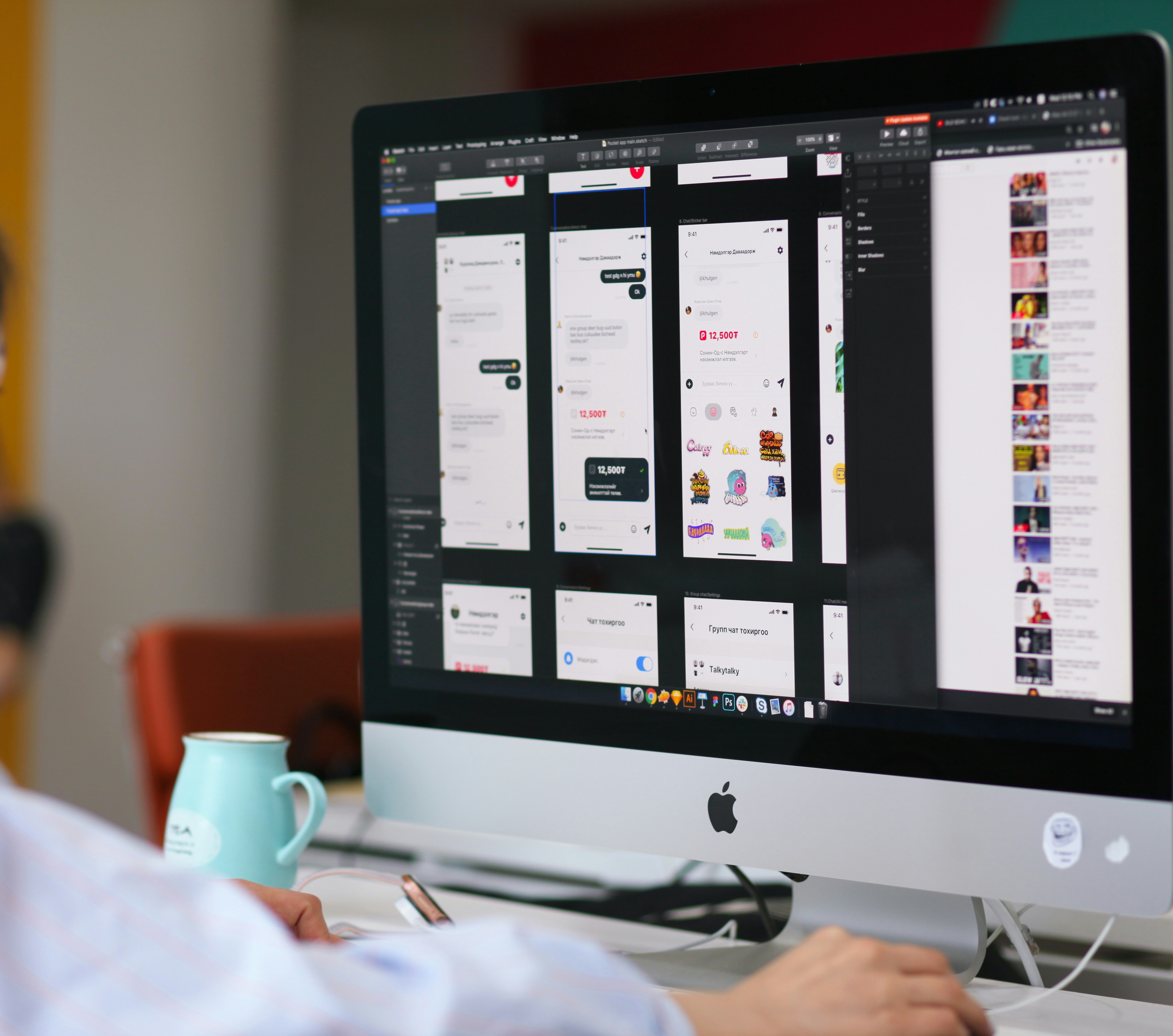
An intuitive and user-friendly UI design enhances the usability of your desktop software, allowing users to efficiently complete tasks with minimal effort. Beyond satisfaction, a superior UI provides a competitive advantage and can result in reduced support and training costs. A well-thought-out UI can also influence user adoption and retention rates, with user-friendly interfaces encouraging users to continue using the software over time.
Key UI Frameworks
- WinUI 3: Offers cutting-edge tools and features needed to build dynamic and high-performing Windows applications. It features a rich set of UI controls and styles with usability built-in.
- WPF: Delivers a secure, scalable, and sophisticated UI framework for desktop experiences, refined through years of use and a rich ecosystem of tools and libraries. It allows for responsive layouts and advanced input handling.
- Windows Forms: Supports a broad feature set including controls, graphics, data binding, and user input, made easy with a drag-and-drop designer in Visual Studio.
Accessibility and Customization
Accessibility:
Accessibility considerations in UI design ensure inclusivity, allowing individuals with disabilities to effectively use desktop applications. By adhering to UI design guidelines—such as using proper contrast ratios, providing keyboard navigation, and supporting screen readers—you can significantly improve the user interface for all users.
Customization:
Developers can customize the user interface of their app to meet diverse user needs and preferences. This may involve offering different themes, layouts, or control configurations.
Ensuring Performance and Security
Resource Optimization
Performance is paramount for desktop applications, and it can be optimized through several strategies:
- Multi-Threading: Use multi-threaded applications to perform tasks in parallel, keeping the UI responsive.
- Efficient Code: Use efficient algorithms and data structures.
- Resource Management: Optimize memory usage and file I/O.
- App Size: Monitor and minimize application size to ensure efficient distribution and loading.
- Using Native APIs: For Windows developers, using the Win32 API with C++ provides the highest level of performance and efficiency through unmanaged code.
Security Measures
Desktop applications are vulnerable to various threats, so security must be a priority:
- Encryption: Encrypt sensitive data at rest and in transit.
- Regular Updates: Keep the application and its dependencies updated to patch vulnerabilities.
- Antivirus and Firewalls: Ensure applications work well with and are protected by operating system security tools.
- Endpoint Management: Use endpoint management tools to maintain license compliance, detect rogue programs, and improve network security.
- Application Virtualization: Solutions like App-V can deliver application packages on demand according to user access rights and permissions.
- Isolation: Segregate resources into security zones to reduce threat vectors.
Regular Updates and Maintenance
Desktop applications require regular software updates and maintenance to remain safe, functional, and efficient. This includes:
- Bug Fixes: Addressing issues discovered after release.
- Security Patches: Updating for newly discovered vulnerabilities.
- Feature Enhancements: Adding new capabilities based on user feedback.
- Performance Optimization: Improving speed and resource usage.
The Development Lifecycle
Developing a desktop application follows a structured lifecycle:
1. Concept and Planning
- Define the Purpose: What problem does the app solve?
- Identify the Target Audience: Who will use it?
- Establish Goals: What does success look like?
2. Design
- User Experience (UX): Plan the user journey, navigation, and overall structure. Use tools like Moqups, Mockplus, and Adobe XD to create prototypes and mockups.
- User Interface (UI): Design the visual layout, colors, typography, and interactive elements.
3. Development
- Select a Programming Language and Framework: Choose the right tools based on project requirements and team skills.
- Install an IDE: Set up your development environment.
- Implement Features: Build the app feature by feature, using version control (like Git) to manage code.
4. Testing
- Unit Testing: Test individual components.
- Integration Testing: Test how components interact.
- User Acceptance Testing (UAT): Get feedback from real users and professional testers.
- Performance Testing: Assess speed, load handling, and responsiveness.
- Security Testing: Identify vulnerabilities.
5. Deployment
- Distribution: Publish the app on platforms like the Microsoft Store, Apple Store, or host it on your website.
- Packaging: Use tools like Electron Forge, or for a Compose Desktop application, use Gradle tasks to create installers (e.g., .msi for Windows, .dmg for macOS).
6. Maintenance
- Track Progress: Use tools like Azure Monitor to track performance and optimize the app after distribution.
- Iterate: Gather feedback, fix bugs, and release updates.
Emerging Trends in Desktop Development
Cross-Platform Development
The ability to build applications for Windows, macOS, and Linux from a single codebase is increasingly important. Electron has made cross-platform development widely accessible, though it can be resource-heavy. Qt provides a powerful cross-platform C++ framework. React Native for Desktop brings the React ecosystem to Windows and macOS. .NET MAUI extends the .NET platform to multiple operating systems. Newer entrants like Tauri and PyPulsar offer lightweight, secure alternatives that combine web frontends with high-performance backends (Rust for Tauri, Python for PyPulsar).
The Rise of Lightweight Frameworks
Developers are increasingly seeking alternatives to the memory-hungry Electron. Tauri and PyPulsar offer significantly smaller bundle sizes and lower RAM usage while still using web technologies for the frontend. This trend suggests a future where cross-platform apps are both powerful and efficient.
Progressive Web Apps (PWAs)
PWAs are websites that function like installed native apps on supported platforms like Windows. They leverage open web technologies to ensure cross-platform interoperability, behaving like traditional installed applications.
AI Integration
Desktop applications are increasingly integrating artificial intelligence capabilities. Developers can access AI and machine learning features through operating system APIs (like those in Windows) and cloud-based services, enabling features such as intelligent suggestions, natural language processing, and image recognition.
WebView2
The WebView2 control allows developers to embed web technologies (HTML, CSS, and JavaScript) into native applications, using Microsoft Edge as the rendering engine. This provides a powerful way to blend native and web content.
Common Pitfalls in Desktop Development
1. Trying to Be Too Cross-Platform
Building for too many platforms from the start can lead to compromises in the user experience. It is often better to build a great app for one platform first and then expand to others using a framework that supports it.
2. Neglecting Performance
Desktop users expect high performance. Ignoring resource optimization and multi-threading can lead to a sluggish application that frustrates users.
3. Ignoring Native UI Conventions
Users are accustomed to how applications behave on their operating system. Failing to follow these conventions (e.g., menu placement, shortcut keys, file dialogs) can be jarring and confusing.
4. Poor Error Handling
Desktop applications must handle errors gracefully. Crashing or showing uninformative error messages is frustrating and unprofessional.
5. Forgetting Accessibility
Accessibility is a fundamental requirement, not an optional feature. Neglecting it excludes users with disabilities and can result in legal consequences.
6. Over-Complicating the Architecture
Starting with a complex architecture when a simple one would suffice is a common mistake. "Start simple, scale as needed" is a good principle, even for desktop development.
Conclusion
Desktop development remains a vital and sophisticated discipline in the modern software landscape. It offers capabilities that web and mobile applications cannot match—unmatched performance, deep hardware access, reliable offline operation, and rich, immersive user experiences. Whether you are building a professional creative tool, a critical enterprise application, or a high-performance game, desktop development provides the platform to realize your vision.
The choice of technologies—programming languages, frameworks, and tools—depends on your project's specific needs: cross-platform support, Windows-native experiences, or a balance of both. However, the core principles remain constant: a focus on performance, security, usability, and a deep understanding of the user's needs.
As the boundaries between platforms continue to blur, with frameworks enabling cross-platform development and PWAs offering native-like experiences, the future of desktop development is more dynamic and accessible than ever. The craft continues to evolve, but its foundation—building powerful, local, and direct software experiences—remains as important as ever.